DMR
To begin, enter your DMR/CCS7 ID in the General Configuration section on the configuration page if it was not auto-populated based on your entered callsign. If you do not have a DMR ID, register for one at RadioID.net.
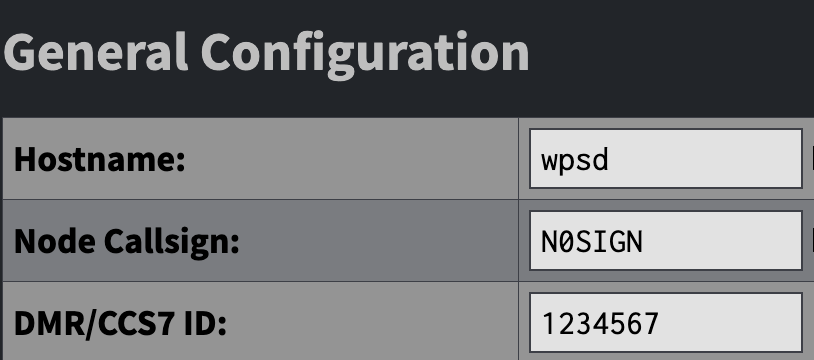
Next, in the MMDVMHost Modem Configuration section, toggle DMR mode on:

Apply Changes to save the configuration. After the hotspot re-starts and the page returns, scroll to the DMR Configuration section.
You must now configure a DMR Network. For this exercise, we will be connecting to the BrandMeister DMR Network…
First, at the BrandMeister website, register, and in the Self-care section, create a Hotspot Security password.
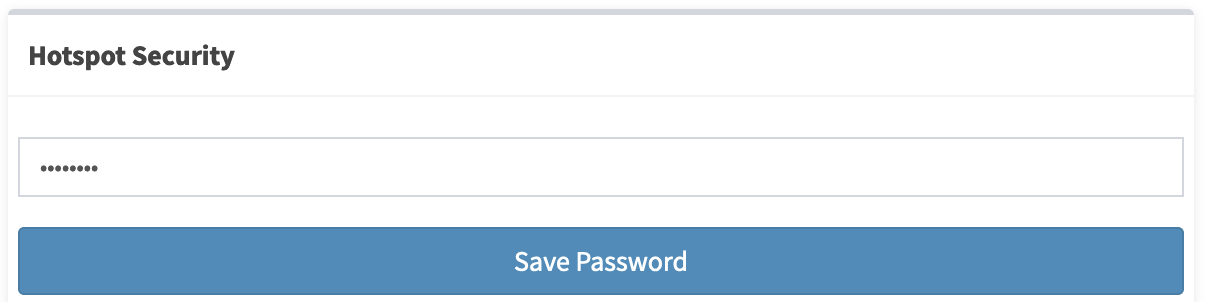
Save this password somewhere secure, and scroll to the BrandMeister Network Settings.
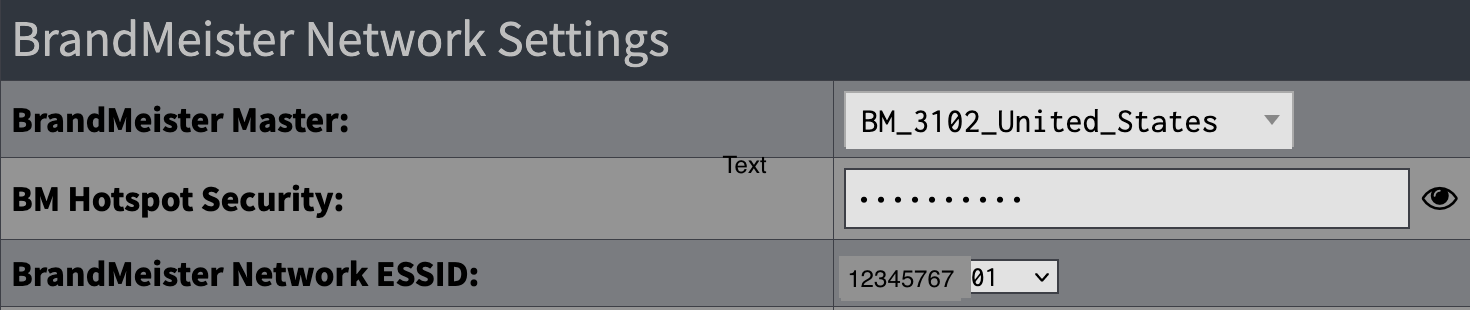
Select the BrandMeister Master that is appropriate for you. In this case, I will select BM_3102_United_States. Enter the BM Hotspot Security password you created on the BrandMeister website. Your DMR ID will populate the BrandMeister Network ESSID section, and in default cases, there is no reason to change the extended ID. Ensure BrandMeister Network Enable is toggled on and Apply Changes.
If you have followed the instructions correctly, on your Dashboard in Mode Status, you should see DMR green; in Network Status, you should see DMR Net green. Below that, in DMR Status, you should see your TS1 and TS2 green; one should show a connection to a talk group.
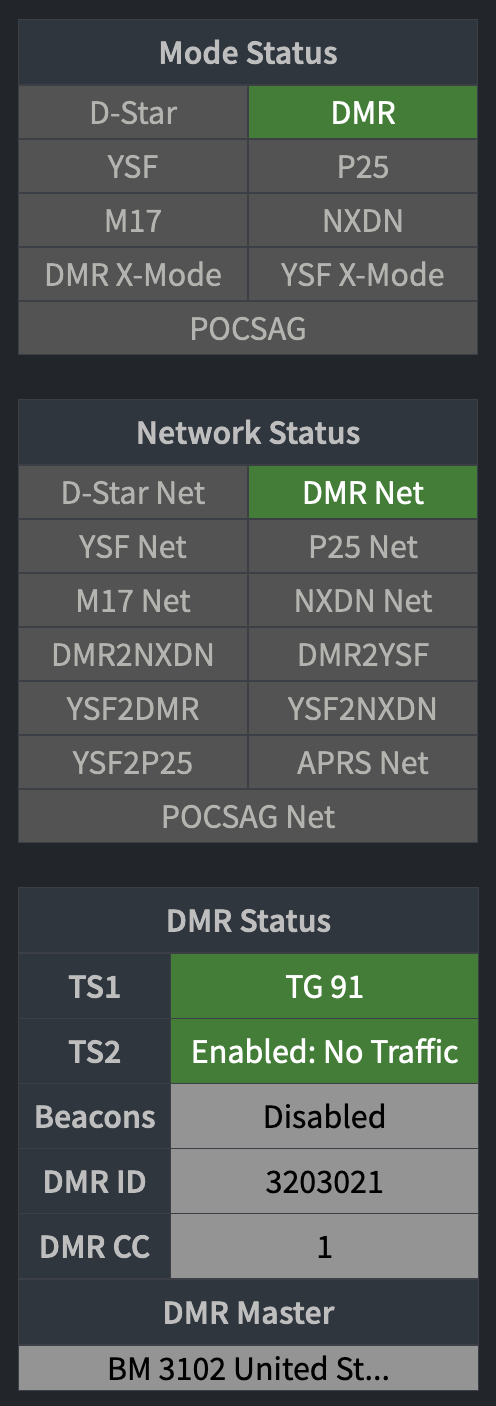
You have completed configuring your hotspot for DMR mode on the BrandMeister network. Continue to Zero to Hero for information about setting up your radio the first time.
Tip
You can connect to multiple DMR networks simultaneously. For more information, see DMR Operation and Functionality to read about advanced DMR operations.