Initial Startup
You will have two paths here depending on whether you used the Raspberry Pi Imaging tool (or manually added a WiFi configuration file) to create your WiFi configuration.
If you created a WiFi Config
After approximately five minutes (possibly longer if you have a slower SBC,) your dashboard should be available at http://wpsd.local (or replace the hostname before the .local with your chosen name portion if you chose a different one.)
Note
If you installed a ZumSpot disk image, the URL will be
http://zumspot.local.If you installed a SkyBridge disk image, the URL will be
http://skybridge.local.If you installed a DVMEGA Cast disk image, the URL will be
http://dvmega-cast.local.If you installed a DVMEGA EuroNode disk image, the URL will be
http://dvmega-euronode.local.
If you did not create a Wifi Config
After approximately five minutes (possibly longer if you have a slower SBC,) you will see an available access point named WPSD-Setup. Connect your computer to this wireless network. Open your web browser and navigate to http://wpsd.local/. Scroll down to Wireless Configuration and select Configure WiFi.
Either Scan for Networks and select your local network and enter your PSK, or* Add New WiFi Network* and enter your SSID and PSK.
When you have entered the proper network data, you can then “Connect” WPSD to the new saved network. After a few minutes, your dashboard should be available at http://wpsd.local (or replace the hostname before the .local with your chosen name portion if you chose a different one.)
Initial Dashboard Access
On your first visit to the dashboard, you will notice that the system automatically redirects you to the Configuration page.
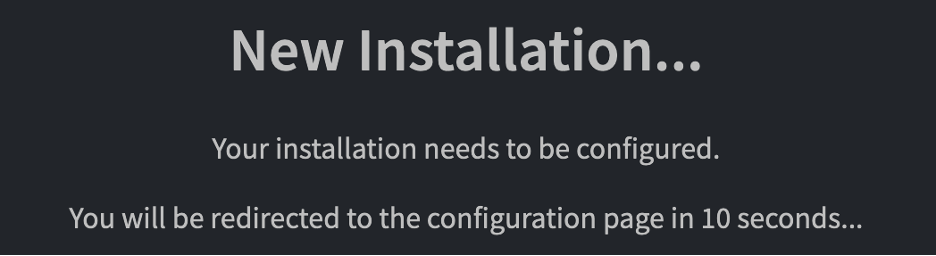
Again, on your first access, you will be prompted for your login credentials:
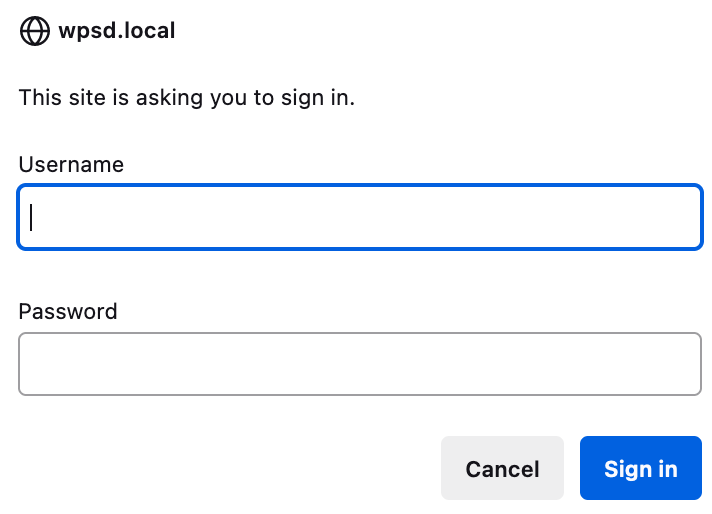
Your login name will be pi-star, and your initial password will be raspberry.
In the future, you can return to the Configuration page by clicking on the Admin -> Configuration link in the dashboard nav bar.

General Configuration
Important
You must apply changes you make on the Configuration page of WPSD by clicking the Apply Changes button on the configuration page floating top banner.
The General Configuration section sets up the basic operational information about your hotspot. You must fill in this information for proper operation.
This section is also the first you must complete during the initial startup of a new hotspot.
Simplex Hotspots / Nodes
Setting |
Description |
|---|---|
Hostname |
The hostname for the hotspot on your network |
Node Callsign |
YOUR callsign, do not use anyone else’s |
DMR/CCS7 ID: |
Required for DMR Mode (If you don’t have one, get a DMR ID from RadioID.Net) |
NXDN ID: |
Required for NXDN Mode (If you don’t have one, get a NXDN ID from RadioID.Net) |
Radio Mode |
Should be set to Simplex for a simplex hotspot board or single radio node |
Radio Frequency |
The frequency desired for operation with the hotspot |
Radio / Modem Type |
The type of hotspot radio board or modem installed on the SBC |
Modem Baud Rate |
The baud rate used for the SBC to communicate with the hotspot radio board |
System Time Zone |
The hotspot’s local time zone. Time format may also be selected (12/24 hour) |
Dashboard Language |
The display language for WPSD |
Update Notifier |
Enable or turn off the automatic software notifications on the dashboard header. Does not affect automatic updates |
Duplex Hotspots / Nodes
Setting |
Description |
|---|---|
Hostname |
The hostname for the hotspot on your network |
Node Callsign |
The call sign of the hotspot over the air |
DMR/CCS7 ID: |
Required for DMR Mode (If you don’t have one, get a DMR ID from RadioID.Net) |
NXDN ID: |
Required for NXDN Mode (If you don’t have one, get a NXDN ID from RadioID.Net) |
Radio Mode |
Should be set to Duplex for a duplex hotspot board or repeater |
Radio Frequency RX |
The receive (uplink) frequency to the hotspot |
Radio Frequency TX |
The transmit (downlink) frequency from the hotspot |
Radio / Modem Type |
The type of hotspot radio board or modem installed on the SBC |
Modem Baud Rate |
The baud rate used for the SBC to communicate with the hotspot radio board |
System Time Zone |
The hotspot’s local time zone. Time format may also be selected (12/24 hour) |
Dashboard Language |
The display language for WPSD |
Update Notifier |
Enable or turn off the automatic software notifications on the dashboard header. Does not affect automatic updates |
Important
Please note that the duplex frequencies are for the modem, not your radio. In other words, the radio’s TX frequency should be the modem’s RX frequency and vice versa.
No Modem
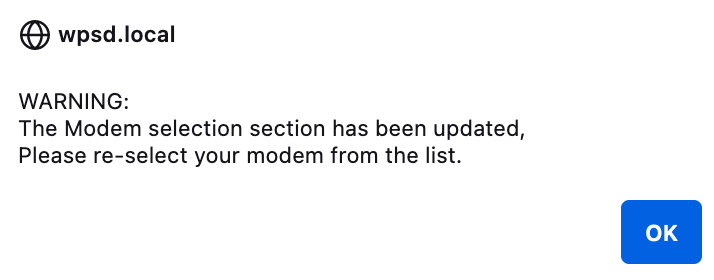
If you have yet to select a modem type or the choices have changed, the web page may prompt you to (re) choose one.
Hint
If yout need to determine the modem type you have installed, run the following command in SSH then select the modem displayed in the result:
sudo wpsd-detectmodem
No Profile
At some point, you will see a banner on the top of the screen prompting you to save your profile:

Follow the link provided, or navigate to to the dashboard, and click the Profiles button. Give your profile a descriptive name. Be aware that non-alphanumeric characters are not permitted. Spaces are allowed.
Todo
Create a section/page/etc. on creating, managing, deleting profiles and how/when/why to use them
Radio Offset
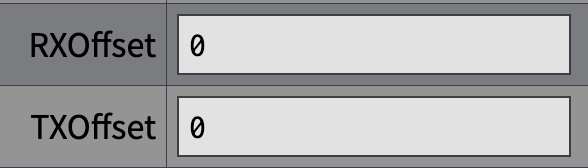
Your modem supplier may have included documentation about the radio offset. This information is on the underside of the case or the documentation that came with the modem.
Navigate to: Advanced -> Quick Editors -> MMDVMHost. Scroll to the Modem section and enter your RXOffset and TXOffset in the appropriate fields.